Understand which feature you enabled
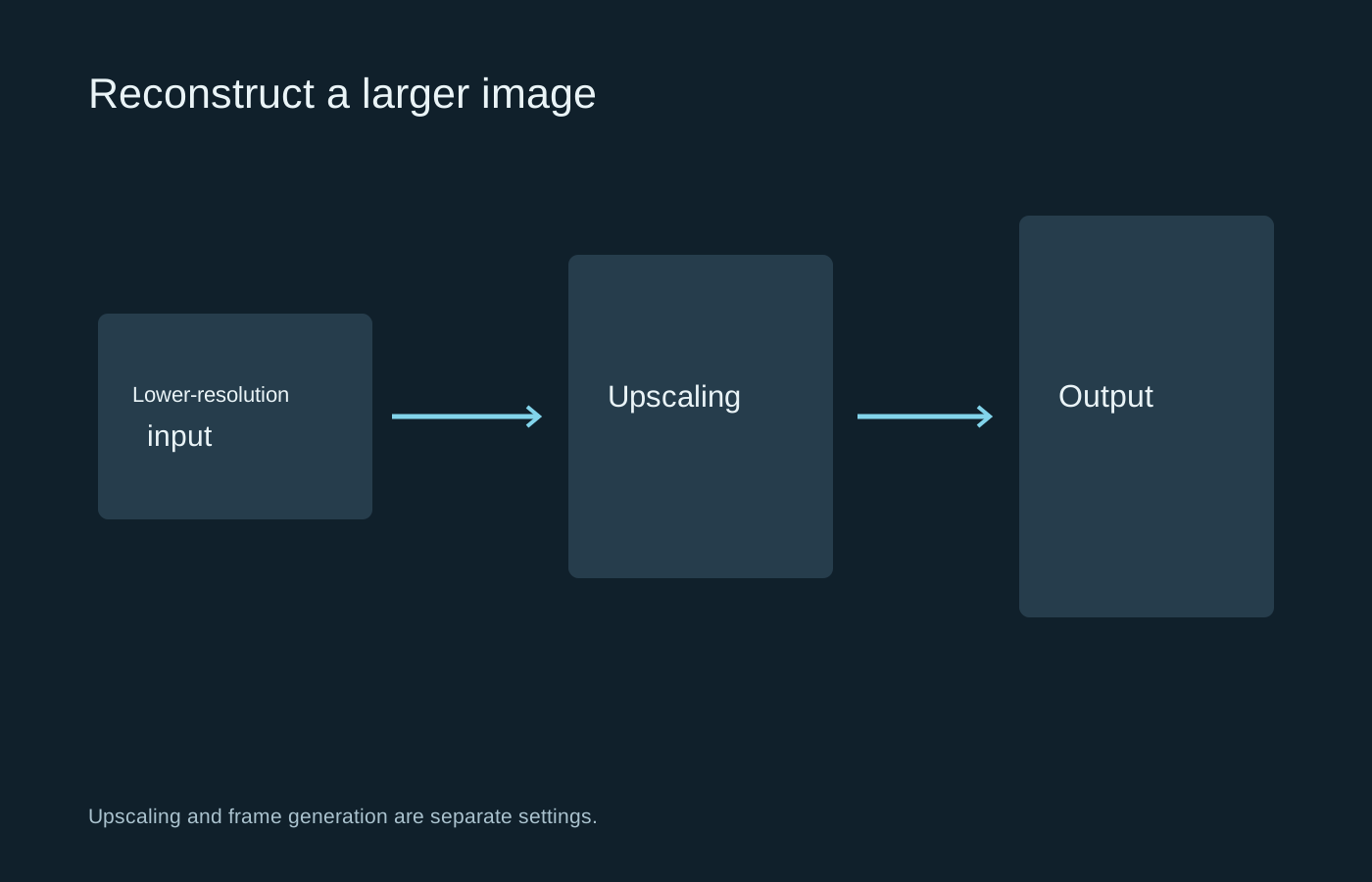
Upscaling reconstructs a larger output image from a lower-resolution input. Frame generation creates additional frames between rendered ones. They are different operations, even when a game groups them under a single branded menu. Begin by testing upscaling with frame generation unchanged or disabled so the comparison has a clear meaning.
Feature names can cover several generations of technology. Hardware requirements, available modes and image behaviour vary between implementations and games. Use the game’s supported options and the manufacturer’s current requirements rather than assuming that every version with the same family name works on every graphics card.
Start with the least aggressive useful mode
A quality-oriented preset is a sensible first comparison when available. Keep output resolution, sharpening and other graphics settings unchanged. Then repeat a familiar scene. If the performance improvement is insufficient, try another mode and inspect what changes in the image as well as the frame-rate counter.
Preset labels are not universal measures of image quality. The input resolution associated with a mode depends on the implementation and output resolution. A mode that looks acceptable at one output can have much less source detail to work with at another. Check the game’s explanation when it exposes the underlying resolution.
Avoid stacking a driver-level scaling feature on top of the game’s own upscaler without a specific reason and documented support. Several image-processing steps can make it difficult to identify the source of softness or ringing. Keep a plain baseline to return to.
Look at troublesome details while moving
Fine wires, fences, vegetation, hair and particles are useful places to inspect. Move the camera slowly and then normally. Look for shimmer, trails behind moving objects, unstable edges and small details that appear and disappear. A still screenshot is helpful for sharpness, but cannot show all temporal behaviour.
Watch the interface as well. Text, crosshairs and markers may be processed differently from the three-dimensional scene. If an overlay ghosts or breaks up, check whether it is a known game-specific issue before changing unrelated driver controls.
Compare in the scenes you actually care about. A distant landscape and a fast fight stress different details. Keep the viewing distance normal for the final decision; extreme magnification is useful for investigation but should not be the only basis for choosing a mode.
Measure the result without mixing metrics
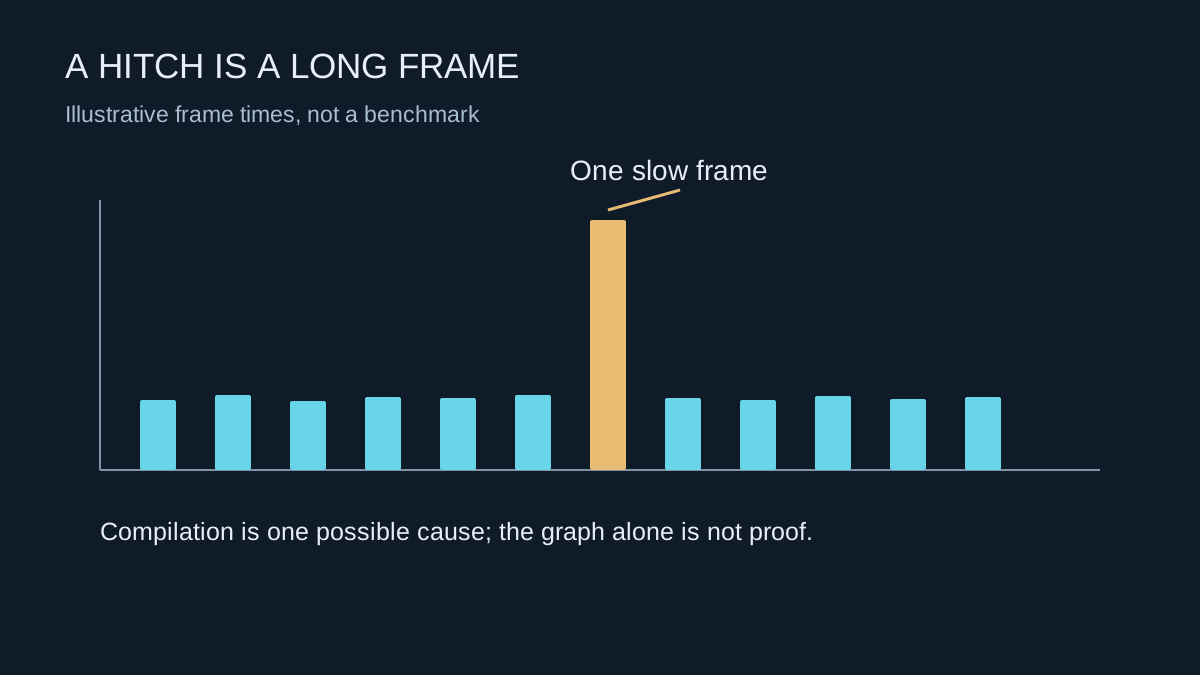
Record the frame rate and frame-time behaviour using the same route. Upscaling helps most when reducing rendering work addresses the current limitation. If the CPU or another task is limiting delivery, lowering the internal resolution may not produce the expected gain.
If you later enable frame generation, treat that as a separate experiment. The displayed frame count and the game’s input response are not interchangeable measures. Check motion artefacts and responsiveness, and follow the feature’s recommended operating conditions instead of assuming a larger counter means every part of the experience is faster.
Save the version and the choice
Game updates can change the upscaler, presets or defaults. Note the selected mode alongside the output resolution and sharpening value. Revisit it when an update changes the appearance or performance, rather than repeatedly retuning a working setup. A useful upscaling choice is the one whose compromises you accept during play, not a permanent loyalty to a particular logo.