Start with two numbers
DPI describes the mouse’s movement sensitivity, commonly expressed as counts per inch in sensor discussions. The game then applies its own sensitivity setting to that input. Changing either can change how far the camera turns when your hand moves. A DPI number on its own therefore tells you very little about how another player aims.
Record both settings before experimenting. Also note whether you use a separate sensitivity for aiming down sights or a scoped view. Those additional multipliers can explain why normal camera movement feels familiar while aiming suddenly feels different. A profile that switches automatically when a game launches is another possible source of confusion.
What eDPI can tell you
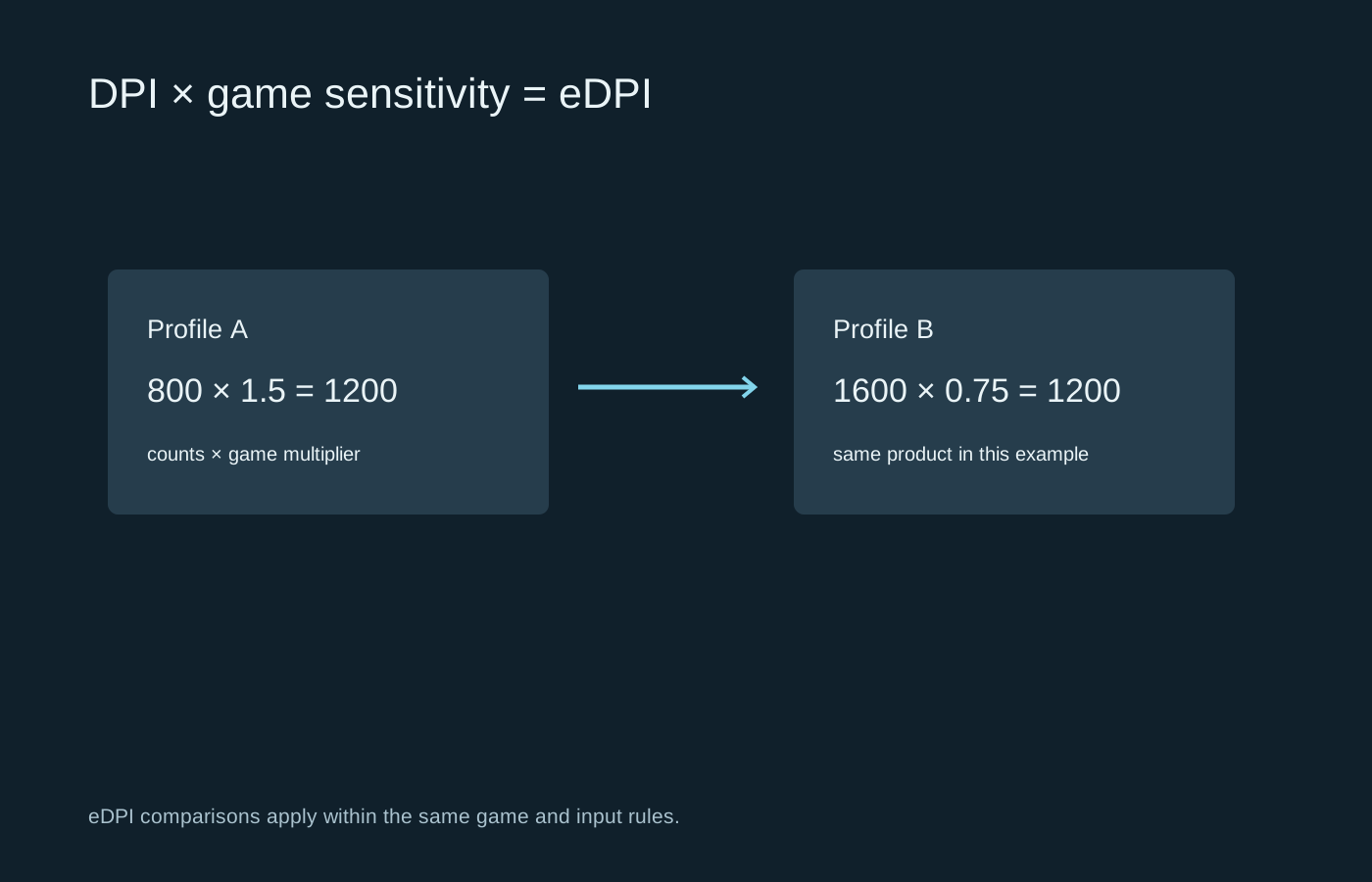
Within the same game and comparable input settings, people often multiply DPI by in-game sensitivity and call the result effective DPI, or eDPI. For example, 800 DPI multiplied by 1.5 equals 1200. So does 1600 multiplied by 0.75. This is a comparison tool, not a new setting that must appear in the mouse software.
Do not carry that product straight into a different game. Games can apply different rotation scales, acceleration rules and zoom behaviour. Even matching physical travel for a complete turn does not guarantee that every scoped view will feel identical. Field of view also changes the visual impression of movement.
A physical-distance check can be useful when moving between games. Mark a starting point on the pad without damaging it, make one controlled horizontal turn and note the travel. Repeat rather than trusting one sweep. If the distance changes with movement speed, an acceleration setting or another input rule may be involved. Do not force a full turn if the pad is too small; use a smaller repeatable angle and treat the result as a personal comparison rather than a universal conversion.
Make one useful adjustment
Pick a familiar practice area and a comfortable DPI for everyday pointer use. Adjust the game sensitivity while leaving that DPI unchanged. Try a deliberate turn, a small correction onto a target and a longer tracking movement. You are looking for a range you can control without repeatedly running out of mousepad or gripping harder.
Keep the chosen setting for several sessions before judging it. Constant changes make it difficult to distinguish a poor match from simple unfamiliarity. If you regularly hit a DPI-switch button by mistake, remove unused stages or reassign the button if the software permits it.
Finally, check whether the game uses raw mouse input before blaming the operating system’s pointer speed. Input paths differ. Save a screenshot of the working mouse profile and game settings so an update or accidental reset does not turn a small adjustment into a long reconstruction job.