Why the download size is not the whole requirement
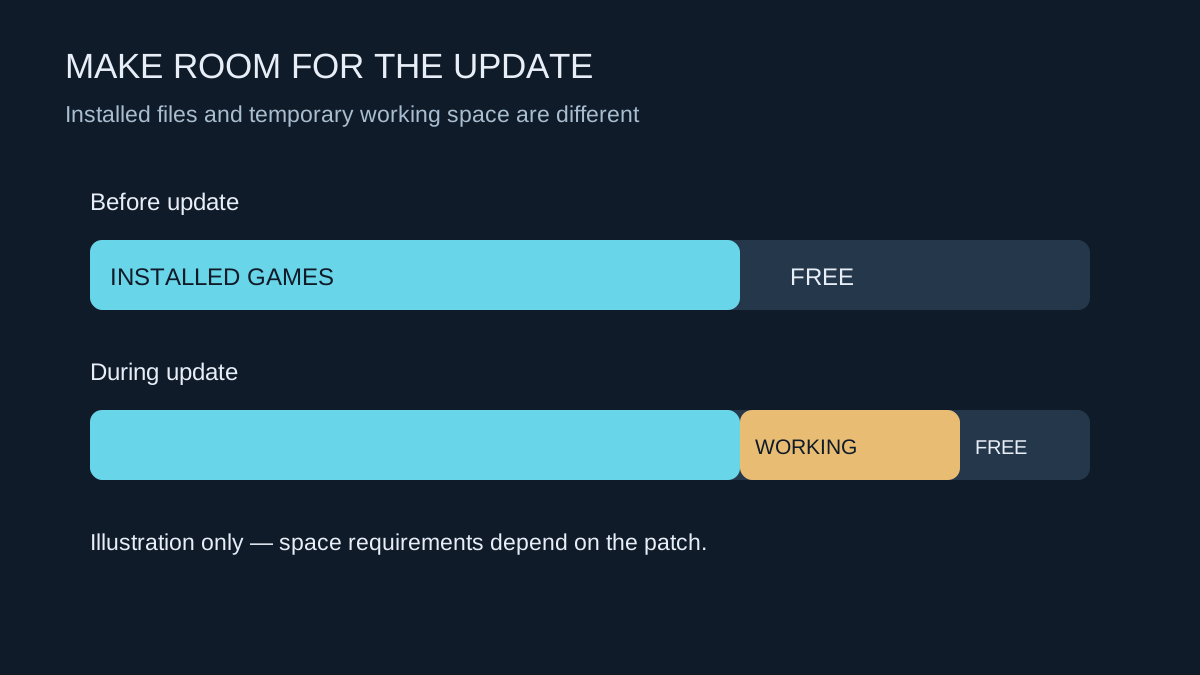
A launcher may download a relatively small patch and then modify a much larger collection of installed files. During that process it can need temporary working space. The final game size, the download size and the free space needed to complete installation are therefore different figures. Use the launcher's current warning rather than assuming that a two-gigabyte download only needs two gigabytes free.
Check the drive that holds the game, not just the total storage in the computer. Plenty of space on a second drive does not help if the patch is rebuilding files on a nearly full first drive. A separate operating-system drive can also need room for temporary files, so inspect both when an update repeatedly stops.
Clear space without losing something important
Start with items you recognise: old installers, exported clips that already have a verified copy, or games you can reinstall. Use the launcher to uninstall a game instead of deleting random subfolders. Before removing a title, establish where its saves and mods live and whether they have been backed up. Cloud support should be checked per game.
Windows storage tools can identify categories taking up space. Review what each clean-up option will remove before accepting it. Downloads, for example, may contain personal files rather than disposable cache. Avoid third-party cleaners that promise to reclaim space by removing files whose purpose you cannot establish.
Moving an installed game through the launcher's own storage controls is often preferable to repeatedly reinstalling it. After the move, launch it and check your progress. Only then remove an obsolete copy if the launcher has left one behind.
Plan around the largest regular update
There is no universal free-space percentage that guarantees every future patch will fit. Keep enough margin for the titles you maintain, and review the largest ones before a major seasonal update. If you regularly have to uninstall another game to update the one you play nightly, capacity has become a recurring constraint rather than a one-off inconvenience.
An update that pauses while disk activity continues may be unpacking or verifying data. Read the launcher's status and allow that work to finish. If it reports insufficient space, stop guessing and inspect the named drive. Repeatedly restarting a patch without changing the available room rarely addresses the underlying problem.