Begin with the laptop open and connected directly
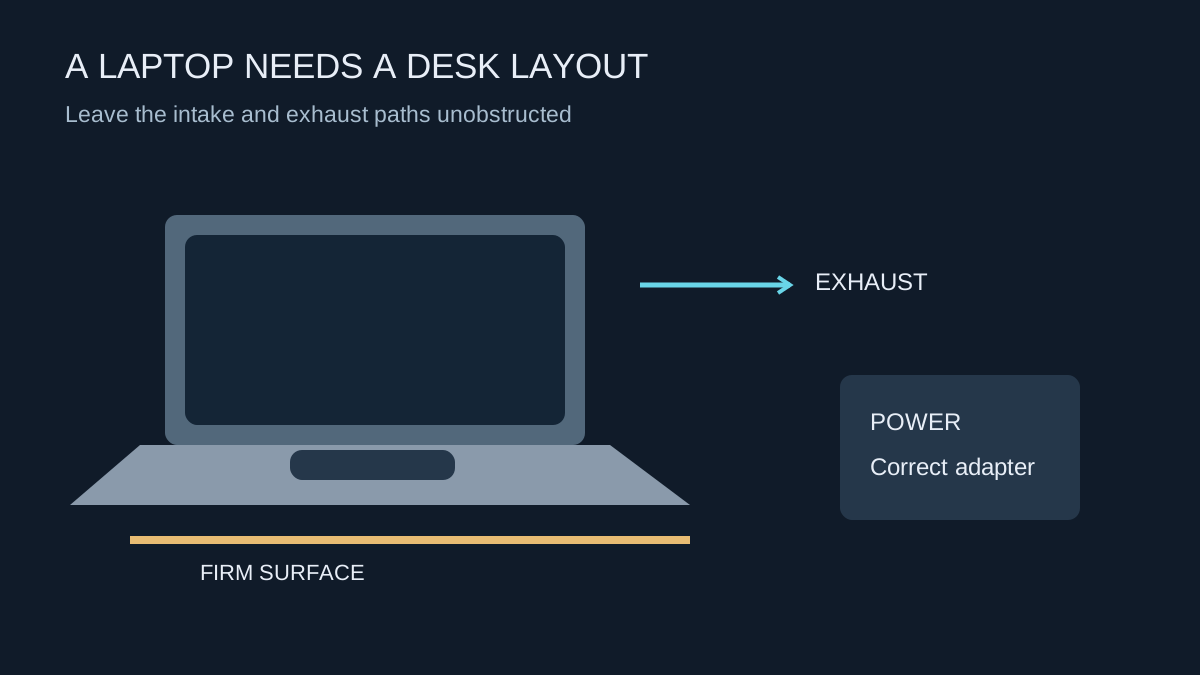
Set the laptop on a firm surface with its vents clear, connect the appropriate power adapter and establish that a familiar game runs normally on the built-in display. This gives you a baseline before a dock, external monitor or adapter introduces another possible source of trouble. A soft cushion or bed can obstruct an underside intake even when the side vents look clear.
Read the manufacturer's instructions before using the laptop with its lid closed. Cooling arrangements and supported operating positions differ. A stand can create space beneath a machine, but it must support the computer securely without covering vents or making the cables pull against their sockets.
Follow the external display path
Check which output supports the resolution and refresh rate you want. A USB-C connector can carry different capabilities on different laptops; the connector shape alone does not guarantee video output. The exact port specification and the dock or adapter's supported modes all matter.
Start with a direct display connection if the laptop provides one that suits the monitor. Confirm the selected refresh rate in Windows and the monitor's information screen. Once that works, introduce the dock if you need it. If the available mode changes, investigate the dock, cable and port combination rather than assuming the monitor is faulty.
Some gaming laptops route particular display outputs differently between integrated and dedicated graphics. Follow the model's documentation for graphics modes instead of copying another laptop's BIOS or control-panel settings. An option that improves one machine's performance can be absent or behave differently on another.
Do not confuse charging with full gaming power
A dock may charge a laptop during light work while supplying less power than its original gaming adapter. Check the laptop's input requirement and the dock's delivered power, including any limits when several devices are connected. A charging icon does not establish that the system can sustain its highest-performance mode without drawing down the battery.
Use the manufacturer's supported power arrangement. If a long game session slowly reduces battery charge while plugged into a dock, investigate that arrangement before blaming the battery. Avoid stacking unverified adapters in an attempt to reach a larger wattage number.
Finish the desk as a system
Place the screen and controls so that you can sit without twisting towards the laptop. Route the power brick and cables where they have room and cannot pull the computer off its stand. Test the headset, microphone and controller while the external display is active, because audio may switch to the monitor automatically.
Finally, repeat the same game used for the baseline. Check temperatures, noise and performance after the machine has warmed up. Keep the original adapter and a known-working display connection available. If a problem appears only through the dock, you now have a simple comparison that narrows the investigation without reinstalling the game or changing every graphics setting.