Release the controls completely
Place the controller on a stable surface without touching either stick. Watch the game in a safe practice area. Note whether a character moves, the camera turns, or a menu selection repeats. If the problem occurs only while holding the controller, check that a finger, case or accessory is not applying pressure.
Disconnect other controllers temporarily. Motion aiming, a steering device or a second input source can produce movement that looks like stick drift. Check the selected profile and restore a known baseline before changing calibration values. Keep a record of the previous settings so the test is reversible.
Compare the symptom elsewhere
Use the manufacturer’s input test if one is available, and try another supported game. A problem that appears in one title may involve that game’s dead zone or configuration. A consistent offset in several places points more strongly toward the controller or its shared software path.
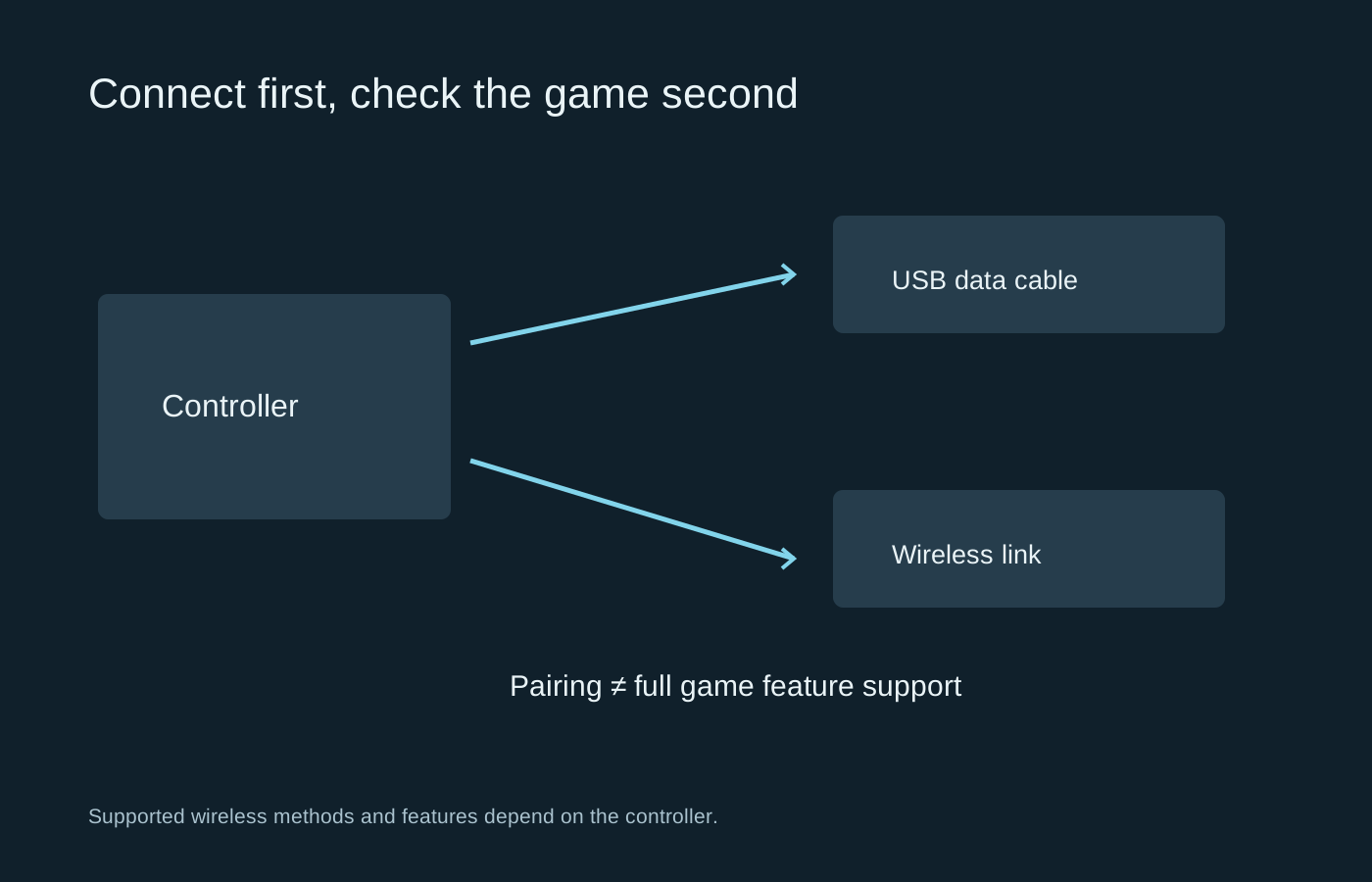
If the controller supports both USB and wireless operation, compare them using the recommended connection method. This is a diagnostic comparison, not proof that wireless causes drift. Note any disconnections or repeated inputs separately; those may be different from a stick reporting an off-centre position.
Cleaning and calibration have limits
Inspect around the stick for visible debris and follow the manufacturer’s external cleaning instructions. Avoid pouring solvent into the mechanism or forcing objects through gaps. A cleaning trick intended for one controller can damage the coating, plastics or internal components of another.
Use a calibration procedure only if it is offered for the exact model and follow its instructions carefully. Calibration may help a supported controller interpret its range, but it is not a universal repair for physical wear. Do not install an unofficial firmware tool simply because it promises to remove drift permanently.
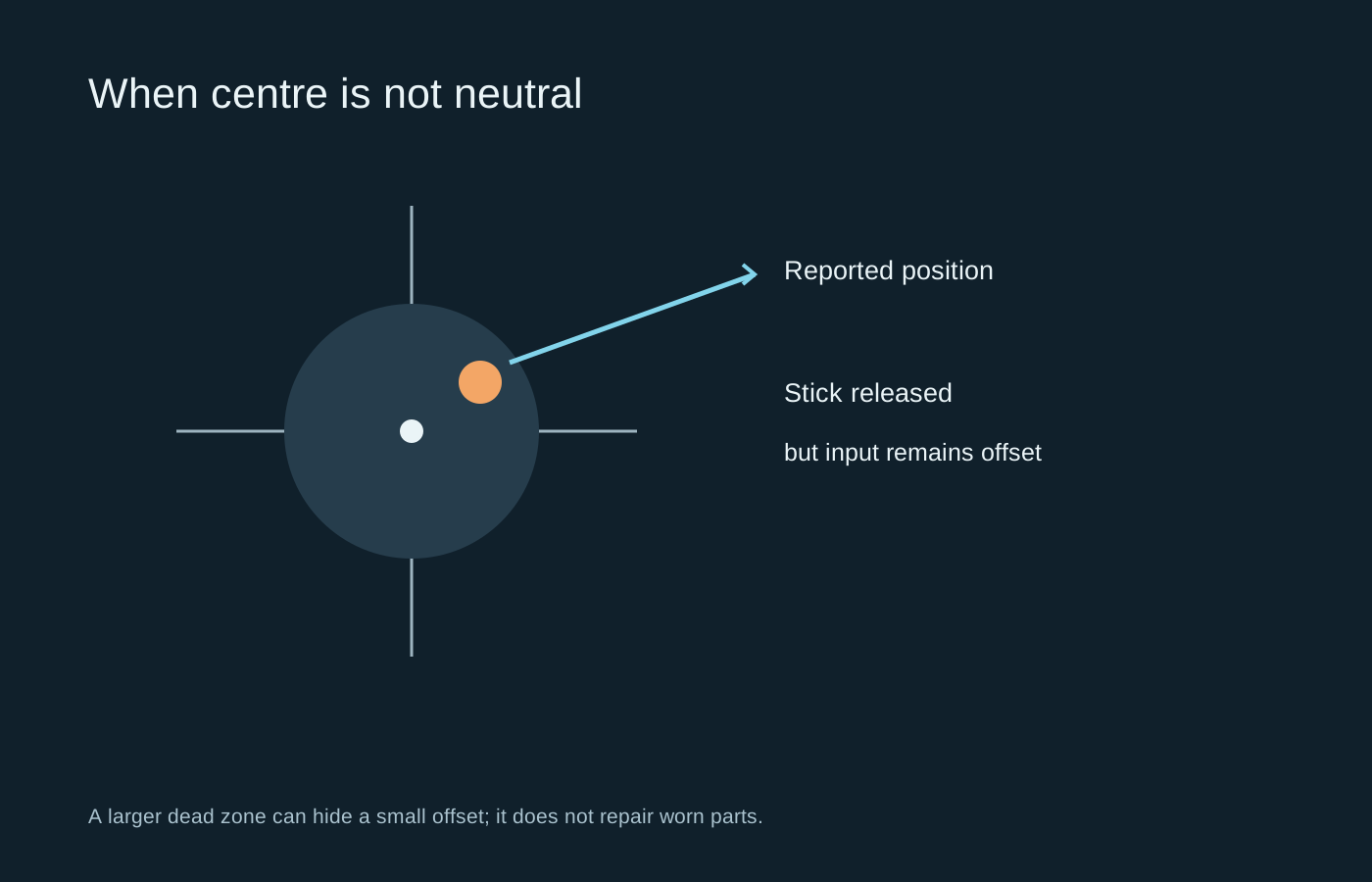
A slightly larger inner dead zone can suppress a small unwanted signal. Test fine movements after adjusting it: a setting that stops drift but removes too much usable control is a compromise, not a repaired controller. If the required zone keeps growing, record that change rather than repeatedly hiding it.
Prepare a useful support report
Give support the model, connection method, firmware version where available and the games or test screens in which the fault occurs. A short video with the controller visibly untouched can demonstrate the problem more clearly than a description of bad aiming. Check repair and warranty options before opening the shell.
If repair is needed, ask whether it addresses the mechanism or merely recalibrates it. Keep expectations specific. A stable neutral position, full usable range and reliable return to centre are the outcomes to verify after service.