
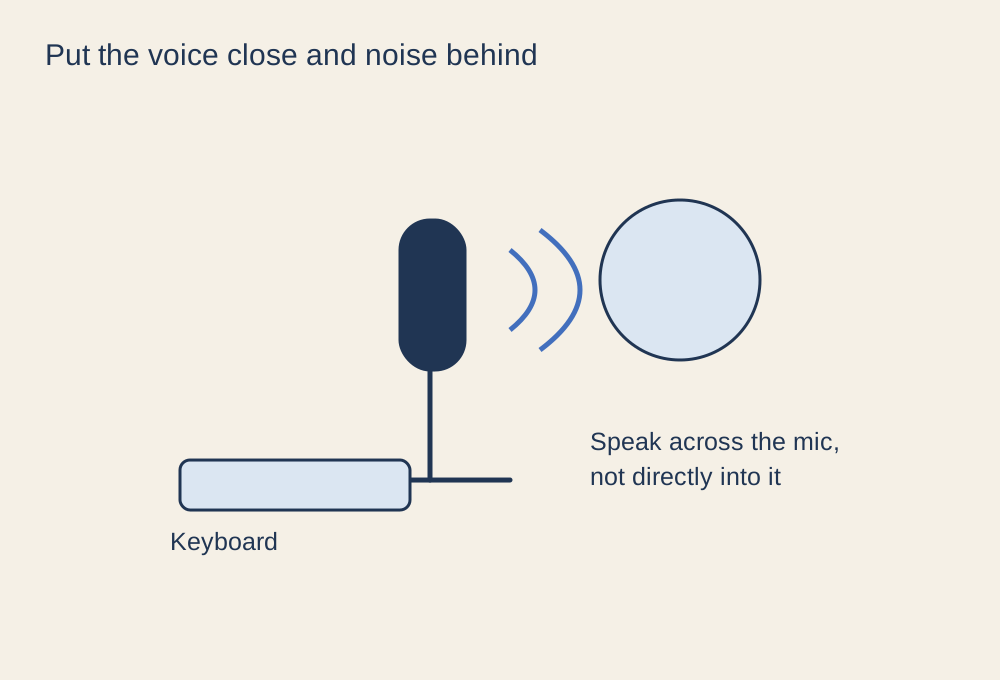
Find the part you should speak into
Check whether your microphone is addressed from the end or the side. The grille shape alone can be misleading, and speaking towards the wrong face can make a capable microphone sound distant. Read the pickup-pattern and positioning information for the model. A directional microphone reduces some sounds from particular directions; it does not magically isolate your voice from the whole room.
Bring the microphone close enough to capture speech clearly without placing it directly in the path of every breath. A slightly off-centre position can reduce bursts from consonants, while a suitable pop filter can help where the microphone arrangement allows it. Use the manufacturer's suggested distance as a starting point, then listen to an actual recording.
Keep the position stable
Set the boom or stand so you can sit naturally rather than leaning towards the microphone for every sentence. Leave the keyboard visible and keep the microphone out of the mouse's movement area. Check that the stand does not pick up repeated knocks from the desk. A shock mount can help in a suitable system, but it cannot compensate for placing the stand where your arm constantly hits it.
Say a few quiet and loud sentences while playing normally. Turn your head as you do when looking at a second screen. If the voice level changes dramatically, adjust the position before relying on aggressive processing. Stable placement makes the gain setting useful across more than one carefully posed test sentence.
Listen before adding filters
Record a short sample with keyboard use and game audio at their normal levels. Listen for room echo, breath bursts and clipping. Lower the input gain if loud speech distorts; moving closer while reducing gain may improve the balance between voice and room sound. Noise suppression can reduce some steady background sounds, but strong settings can also make speech sound unnatural.
Confirm that the chat or recording application uses the intended microphone. A webcam or headset can become the default unexpectedly. If you use both a chat application and recording software, check each separately. The useful result is intelligible speech through the actual application your friends hear, not simply a moving level meter in the operating system.

.jpg)