Find the controls that affect each source
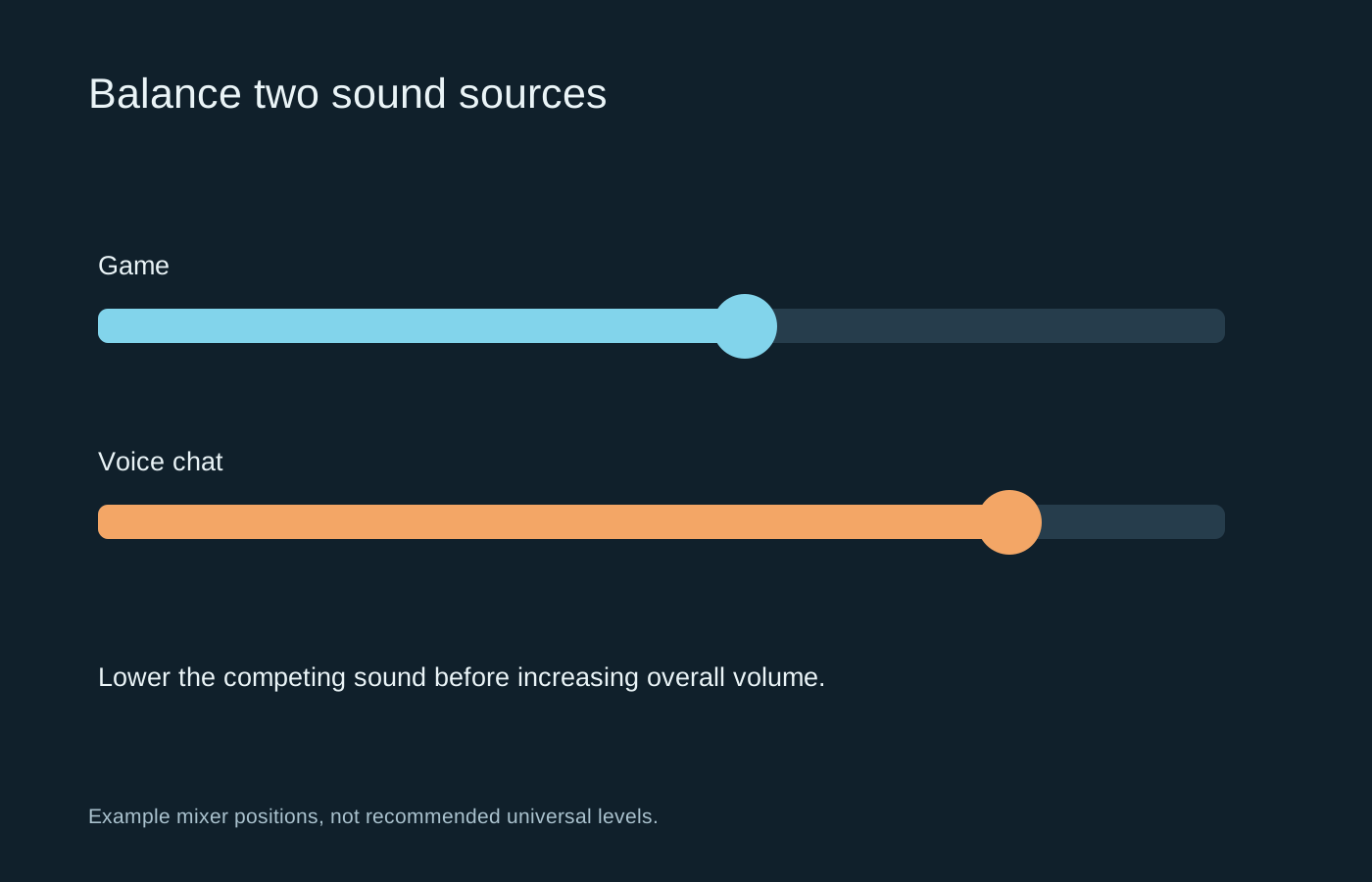
A master volume changes the entire mix. Game volume and chat volume change individual sources. Some headsets provide a dedicated balance control, but its operation depends on the supported platform and audio routing. If everything becomes quieter together, you may be adjusting the master level rather than the balance.
Begin with a comfortable overall level and ask a teammate to speak normally. Reduce game music, effects or the game’s master setting until speech is understandable. Dialogue within the game may have its own slider. Decide whether you need to hear that dialogue alongside chat rather than blindly lowering every category.
Check the voice application’s output device. When game audio goes to one endpoint and chat to another, a hardware mixer may work as intended; on another headset, that arrangement may split audio unexpectedly. Follow the model’s instructions instead of selecting devices solely because their names contain game or chat.
Test the loud part of a session
A quiet menu is not representative of combat, a race start or several people speaking at once. Test a familiar loud scene at a sensible level. Avoid raising chat repeatedly to overcome a mix that becomes excessive during effects. Lowering the competing source is often the more useful adjustment.
Individual participants can also have very different microphone levels. Use per-person volume controls where available, or ask someone whose voice is distorting to check their input. Turning everyone up to compensate for one quiet microphone makes the other voices unnecessarily loud.
If your own voice sounds odd, distinguish microphone monitoring from what other people hear. Monitoring feeds your microphone back to your headphones; it is not the same as outgoing chat volume. Make a recording or use the application’s test feature before changing input gain.
Save the working arrangement and check it after changing headsets or reconnecting a USB device. An application can return to a different default output. A quick pre-session speech check is easier than rebuilding the entire mix while a group is waiting.