Observe before ending tasks
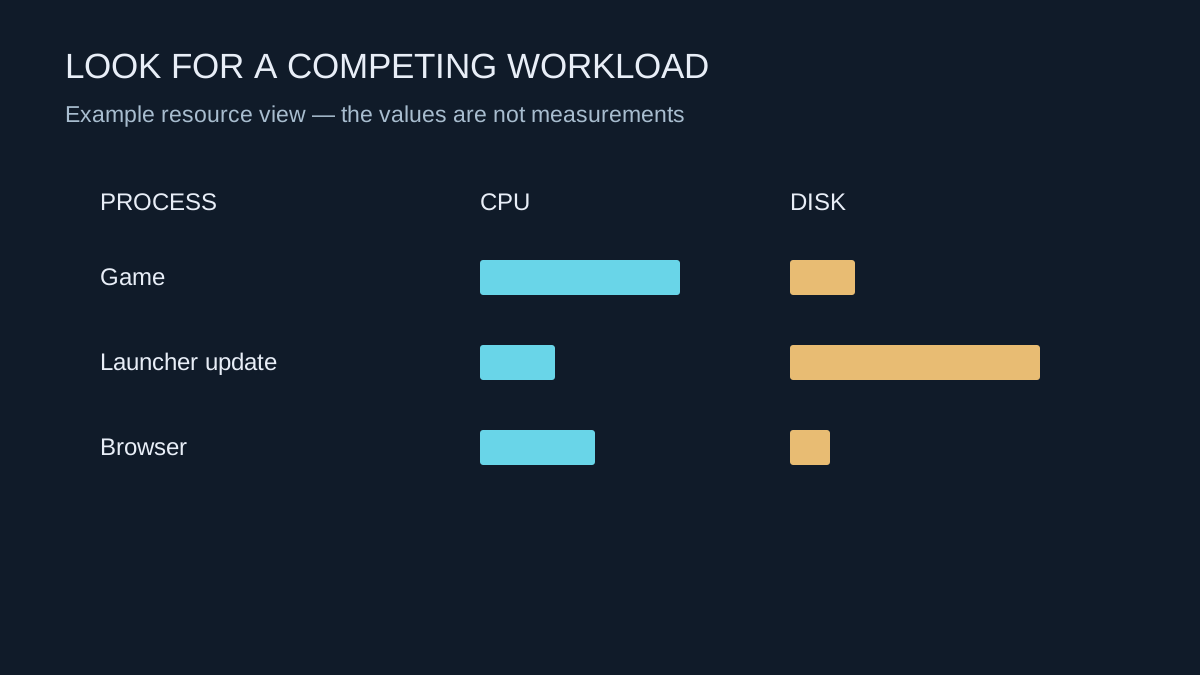
A launcher unpacking an update, a browser playing video or a backup transferring files can change what is available to a running game. Open Task Manager and look at CPU, memory, disk and network use while reproducing the problem. The resource under pressure matters more than the mere number of applications open.
A background app that is idle may be harmless. Conversely, one visible window can contain several active tasks. Record the name of a process that rises when the hitch occurs, then identify what it belongs to before stopping it. Do not terminate unfamiliar system processes simply because they appear near the top of a list.
Make a reversible comparison
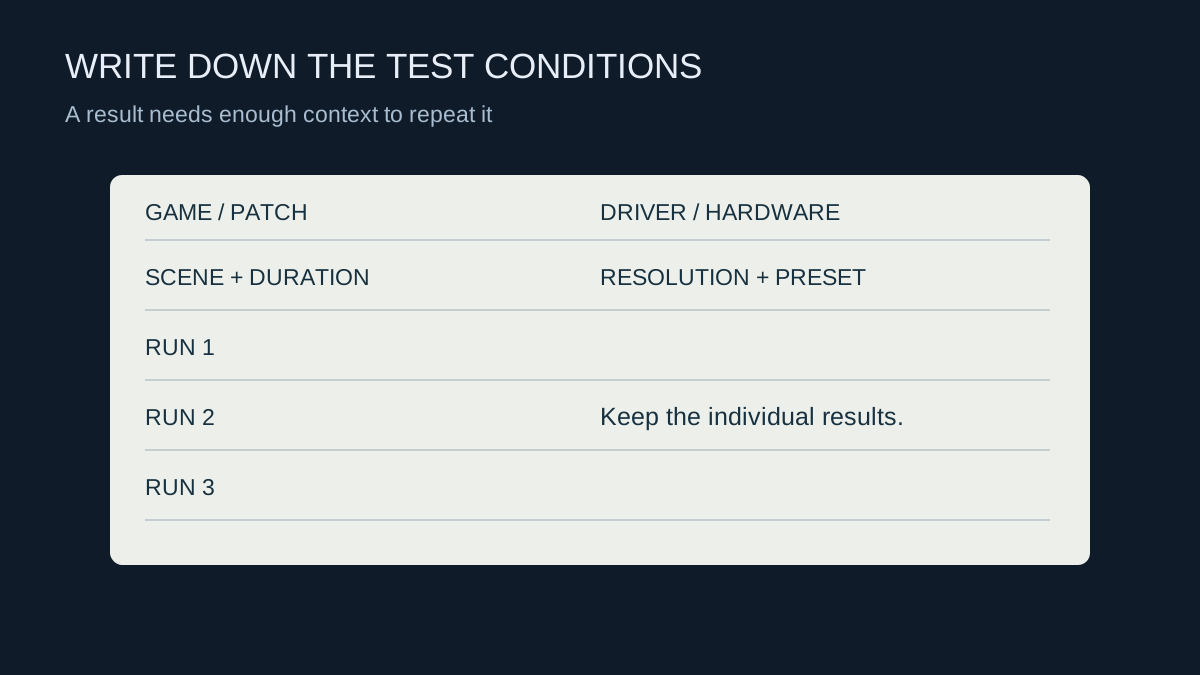
Close a nonessential application through its normal controls and repeat the same game scene. Pause a known download or scheduled backup rather than deleting the program. If performance improves, restore the workload and see whether the problem returns. This comparison gives stronger evidence than changing ten settings and attributing the result to whichever change you remember best.
Keep security software operating. Scheduling a heavy scan outside a gaming session is different from leaving protection disabled. Similarly, do not remove anti-cheat components to reduce background activity; the game may require them, and that action can introduce a separate problem.
Review what starts automatically
If an unnecessary application returns after every restart, inspect its startup setting. Windows provides startup controls, but disabling automatic launch does not uninstall the application. Keep a note of the change so that a useful sync or peripheral tool can be restored if needed.
Some peripherals depend on software for profiles or particular features. Check whether a mouse setting, microphone effect or controller mapping changes when its utility closes. A quieter task list is not an improvement if the controls no longer behave as intended.
When the culprit is still unclear, Microsoft's documented clean-boot procedure can help isolate software conflicts. It requires careful restoration afterwards and is more involved than closing a browser. Follow the instructions for your Windows version rather than using a generic list of services to disable permanently. The goal is to find the conflicting workload and resolve it, not to strip the system of every background function.