Draw two destinations
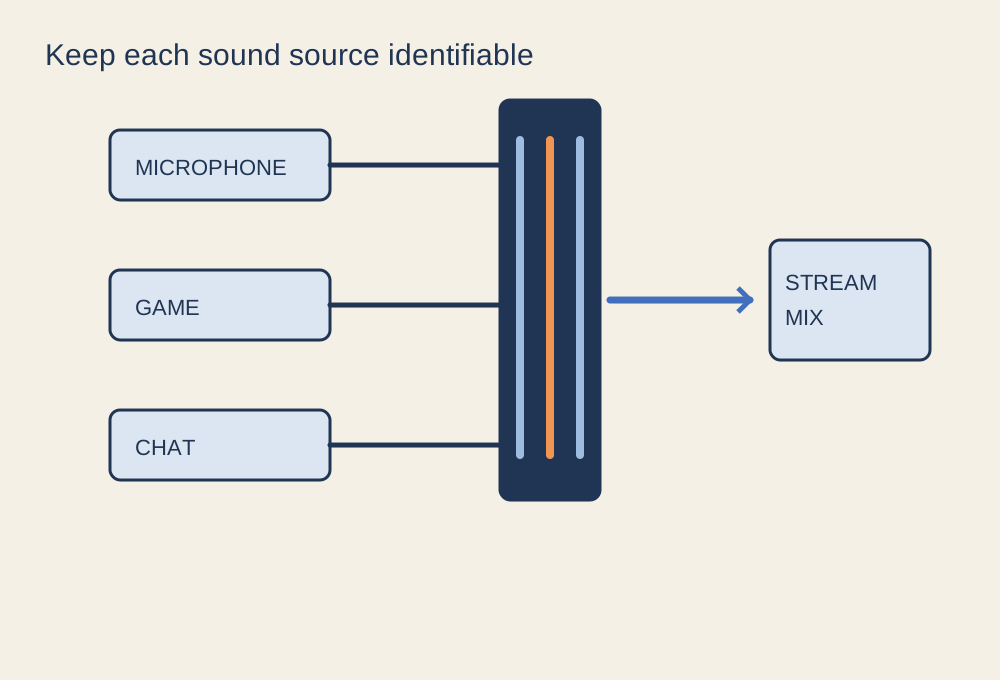
Before changing audio settings, write down what the audience should hear and what you should hear. Those are related but different mixes. You may want game audio, your microphone and friends' chat in the stream, while your headphones also contain a private notification or an application you do not intend to broadcast. A sound being audible to you does not prove that the recording captures it, and the reverse can also be true.
List the sources separately: microphone, game, chat application, browser, music and capture device where used. Then identify the actual device or application feeding each source in the recording software. Clear names such as “USB microphone” and “game audio” are easier to troubleshoot than several entries called “default”. Device defaults can change when a headset or controller reconnects.
Avoid capturing the same signal twice
In OBS, global audio devices and scene-specific audio sources can overlap. For example, capturing desktop output and also adding a separate source that contains the same game audio can create duplication. Disable an unnecessary path only after confirming what it carries. Do not remove every source and hope that the remaining meter represents the complete mix.
Test one source at a time. Speak with the game quiet, then stop speaking and trigger a recognisable game sound. Watch which meters respond. Repeat with a friend's chat voice. If two meters move for one source, identify whether that is intentional routing or a duplicate capture. Record the test and listen rather than judging solely from the visual meters.
Balance speech against the busy scene
Set levels while the game produces a representative loud moment, not only its quiet menu music. Speak at your ordinary level and include a louder sentence. Keep enough headroom that peaks do not clip. If the game overwhelms speech, lower the game contribution before simply turning the microphone up until it distorts.
Ask chat participants before including their voices in a stream or recording. Some may prefer to stay out of the broadcast. Where the software and operating system support separate application capture, that can make excluding an application easier, but verify the actual output. Do not assume that a mute button in one application affects every recording path.
Separate monitoring from recording
Monitoring sends a source to a device so you can hear it. If that monitored output is captured again, it can create an echo or feedback path. Choose the monitoring device deliberately and avoid routing it into a source that is already part of the mix. If your voice returns with a delay, inspect this path before adding noise filters or changing the microphone hardware.
For later editing, recording separate audio tracks can be useful when supported by your settings and file format. However, a stream usually has a defined live mix, and not every player plays every recorded track at once. Test the file in your intended editor and confirm that each required track contains the expected sound. A silent default playback track does not necessarily mean the source was never recorded.
Test the mute controls
Make a short test in which you mute the microphone, unmute it, then mute chat. Say the action aloud before each change so the playback is easy to follow. Check that the source you intended to remove disappears and that the others remain. A hardware mute switch, an application mute and a source mute can operate at different points in the chain. Label the control you will actually use during a stream, and avoid relying on a keyboard shortcut you have not tested while the game has focus.
Save a short rehearsal
Record a minute containing speech, game action, chat and a switch between scenes. Play it back through headphones, checking the start and end as well as the busy section. Confirm that no private notification slipped into the mix. Save the working configuration with recognisable source names, then repeat this small test after changing a headset, audio interface or capture device. A documented signal path is much easier to repair than a collection of settings adjusted by guesswork.