Begin with a supported HDR signal
Confirm that the game supports HDR and that the console and television report an HDR signal. A television's bright picture preset does not establish that HDR is active. Use the correct HDMI input and any enhanced input setting required by the display. If the signal passes through a receiver, check its support too.
On PS5, the HDR setting can apply HDR only when supported or convert other content as well. Using the supported-content option makes it easier to compare a game's intended SDR and HDR behaviour. Read the current console instructions before adjusting calibration.
Use the calibration prompts as intended
Run the console's HDR adjustment with the display in the picture mode you intend to use for gaming. Follow each visibility instruction rather than copying another person's button count. Screen brightness capability, tone mapping and settings differ between models, and sometimes between sizes in the same family.
Room light matters to what you can see. Calibrate in a representative environment instead of a sunlit room if you mainly play after dark. Avoid changing multiple television contrast and black-level controls halfway through the console procedure. If you change the display's tone-mapping mode later, review whether the console calibration should be repeated.
Some games have their own HDR controls. These may adjust peak brightness, paper white or the brightness of interface elements. Read what each label means for that game; the same-looking slider can behave differently elsewhere. Start from the game's recommended procedure, then compare a scene with both dark detail and bright highlights.
Investigate missing shadow detail
A black area should not automatically be lifted until every object is visible. Some scenes are deliberately dark. Compare a known scene, check the game's calibration image and make sure the console and display agree on their signal settings. A mismatched range setting can damage the image, but manually forcing a range without evidence can create the mismatch you were trying to fix.
Look for detail disappearing across several games rather than only in one artistically dark location. If menus and all games look washed out, revisit the signal path and display mode. If only one title looks wrong, investigate its HDR implementation and current support advice before changing the whole television setup.
Keep different HDR controls in their roles
A peak-brightness control tells a game something different from a control for ordinary scene brightness or interface white. Raising every slider can flatten highlights and make menus unpleasant without revealing useful detail. Change one control, read its explanation and return to the same scene before deciding whether it helped.
Use more than one scene for the final check: a dark interior, an outdoor view and a menu with small bright text can expose different problems. Do not optimise one night scene by making every daytime scene washed out. If the title provides no clear calibration guidance, compare its defaults and current developer advice before adopting settings shared for a different display.
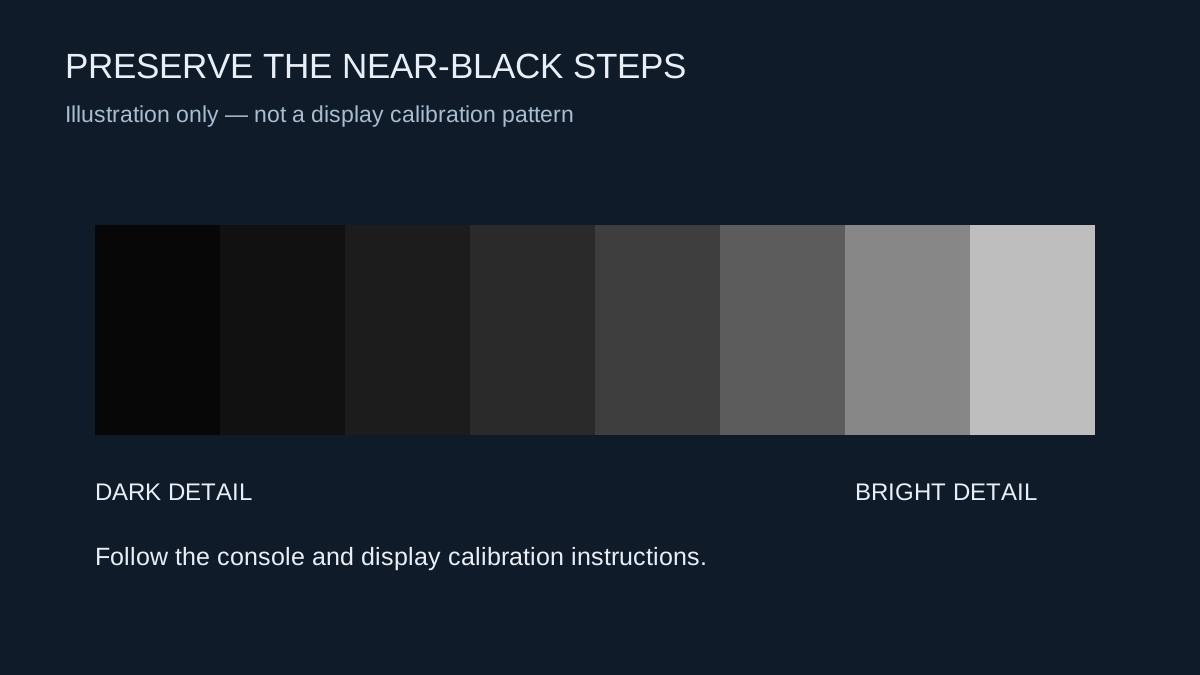
The illustration on this page explains dark-to-light detail; it is not a calibrated HDR test image. Browser rendering and display tone mapping make it unsuitable for setting a console's output.
Keep the result comfortable and repeatable
HDR does not need to look maximally bright all the time. Bright interface elements in a dark room can be uncomfortable even when highlights in the world look convincing. Where the game provides a separate interface or paper-white setting, adjust that control rather than flattening the whole image.
Record the final console calibration and picture mode so that a reset or input change is easier to recover from. A screenshot viewed on an SDR phone is not a dependable way to judge the HDR result. Evaluate the actual display, and keep an SDR comparison available if the game's HDR implementation does not suit it.