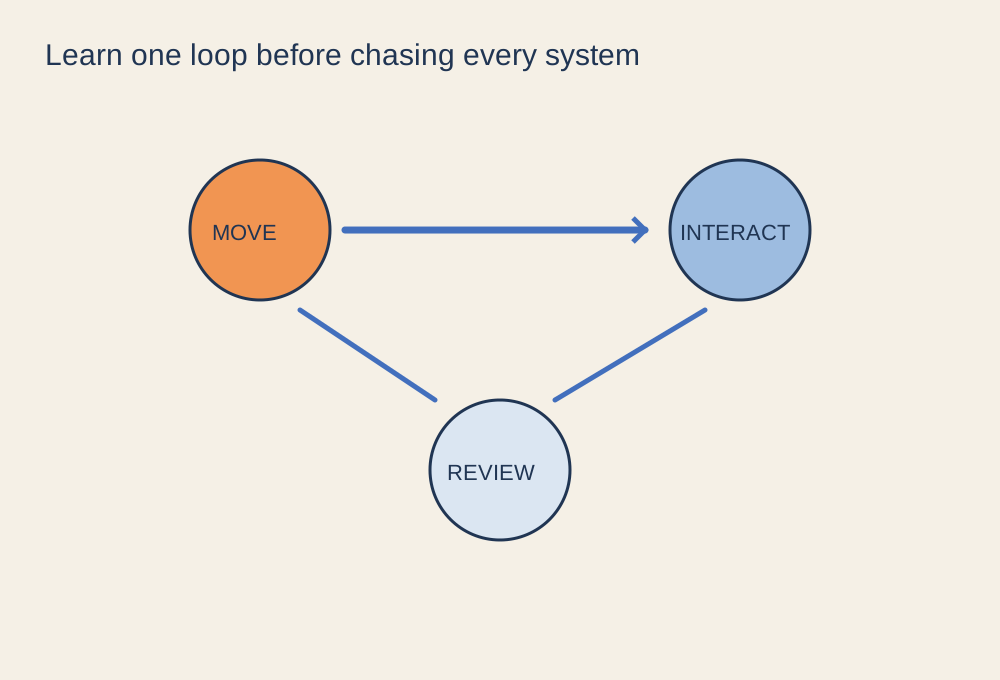
Give the first broadcast a narrow scope
Choose one game and a simple scene for the first stream. You do not need animated alerts, several cameras and a complicated scene collection before you know that the picture and sound work. Decide whether the stream includes your microphone, a webcam and friends' voices. Ask anyone whose voice or image will be included before going live.
Use the official download and setup guidance for your broadcasting software. In OBS, the quick-start process can help establish an initial configuration, but you still need to verify it on your machine and connection. Keep platform credentials and stream keys private. Do not place them in screenshots, public notes or an on-screen browser window while demonstrating the setup.
Capture only what you intend to show
Select the appropriate game or window capture where supported, then verify the resulting frame. Display capture can expose notifications, private messages and other windows when you switch tasks. If you need it, prepare the desktop deliberately and review what will be visible during a game crash or a change of focus.
Check the game publisher's streaming guidance and the platform's rules, including music. A game's soundtrack or a browser music service is not automatically cleared for every broadcast use. Use a supported streamer mode where it addresses the relevant content, but do not assume that the label covers unrelated audio you add yourself.
Balance the audio in a recording
Set the microphone position and input level before applying many filters. Record speech while the game plays a busy scene, then listen to the file. Confirm that speech is intelligible, loud moments do not clip and the game appears only once in the mix. Check chat separately if it is included. A moving meter proves that a signal exists, not that the audience will hear a useful balance.
Use headphones during the test if speakers feed game sound back into the microphone. Confirm the selected devices after reconnecting controllers or headsets, since defaults can change. If you hear your own voice with a delay, inspect monitoring and duplicate capture paths before assuming the microphone is faulty.
Test the workload you will broadcast
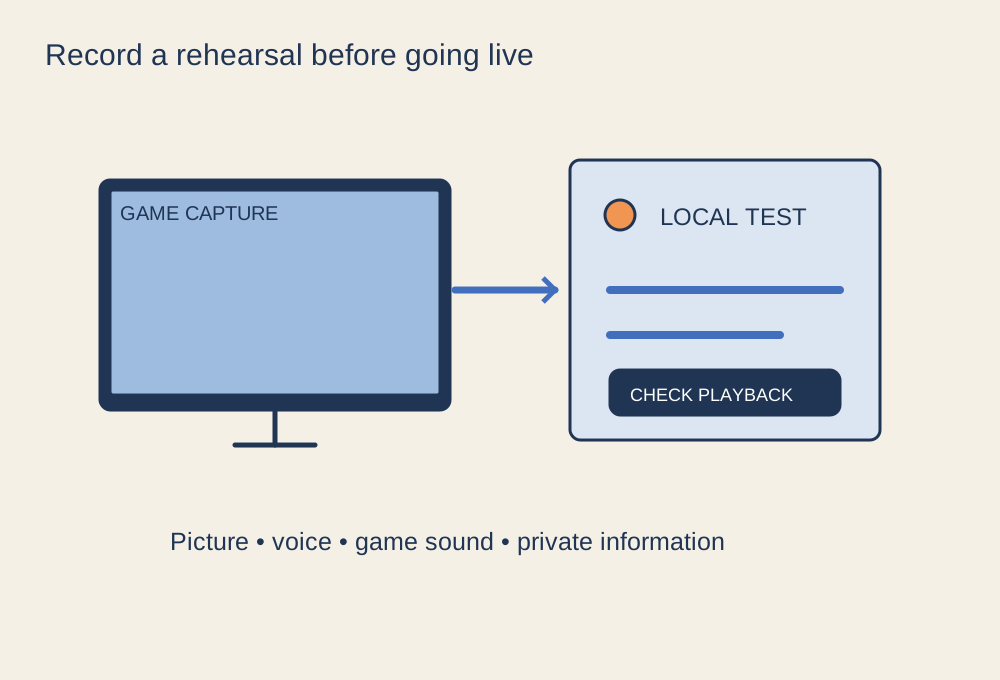
Make a rehearsal recording with the game, camera, chat and any overlays running together. Check the software's performance indicators and watch the saved video for dropped or uneven frames. If the computer struggles, reduce the output workload or game settings deliberately. A lower-resolution stable stream is a better starting point than a demanding setting that your system cannot sustain.
Check the platform's current recommended output settings and your available upload connection. Do not treat a single speed-test result as a guarantee of sustained streaming performance. Leave room for other household activity, and use the platform's test or preview features where available. Local recording verifies part of the setup, but it does not reproduce every network condition of a live broadcast.
Look at the audience view
When the platform provides a preview, inspect it at a realistic viewing size. Small game text or a webcam placed over a useful interface element can be hard to notice in a large local preview. Check that overlays do not cover subtitles or essential controls. If a friend helps review the test, ask them to describe picture clarity and speech balance rather than simply confirming that the stream is online. Do not keep a live preview playing through speakers beside the microphone, because it can feed delayed broadcast audio back into the stream.
Make stopping easy
Keep the broadcasting controls accessible so you can stop promptly if something private appears or the setup fails. Prepare a simple pause scene if it serves a real need, and confirm what audio continues during that scene. A blank image is not necessarily a muted microphone.
Before starting, review the title, category, audience settings and any saved description on the platform. Run one final short sound and frame check. After the first stream, review a small sample from the beginning and a busy moment, then change only the problems you observed. Add production features gradually when they serve the broadcast rather than because a larger creator uses them.