Separate three kinds of data
A console can contain game installations, saved progress and media captures. The rules for putting each on external storage can differ. A drive formatted as extended game storage is not necessarily a general-purpose destination for screenshots or an independent backup of every save. Decide which job you want the drive to perform before buying it.
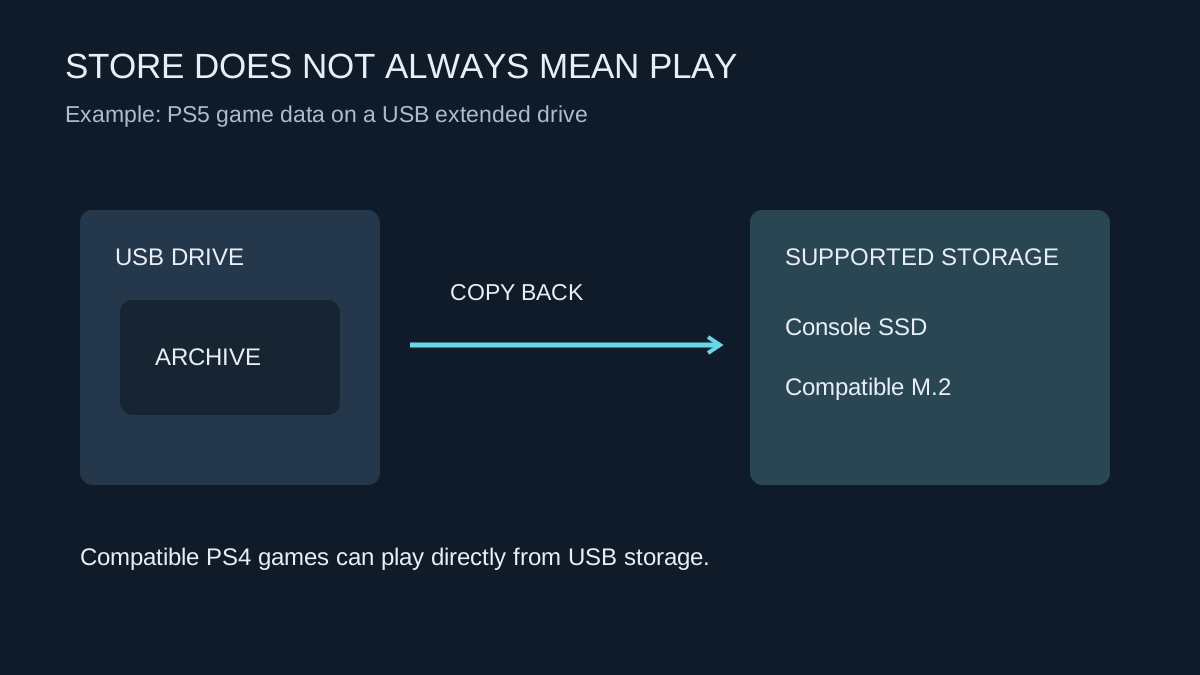
Also distinguish storing a game from launching it. A large USB drive can be useful as an archive even when current-generation games need to move back to supported faster storage before play. The transfer may still be preferable to another download, particularly on a limited connection.
Read the rules for the game generation
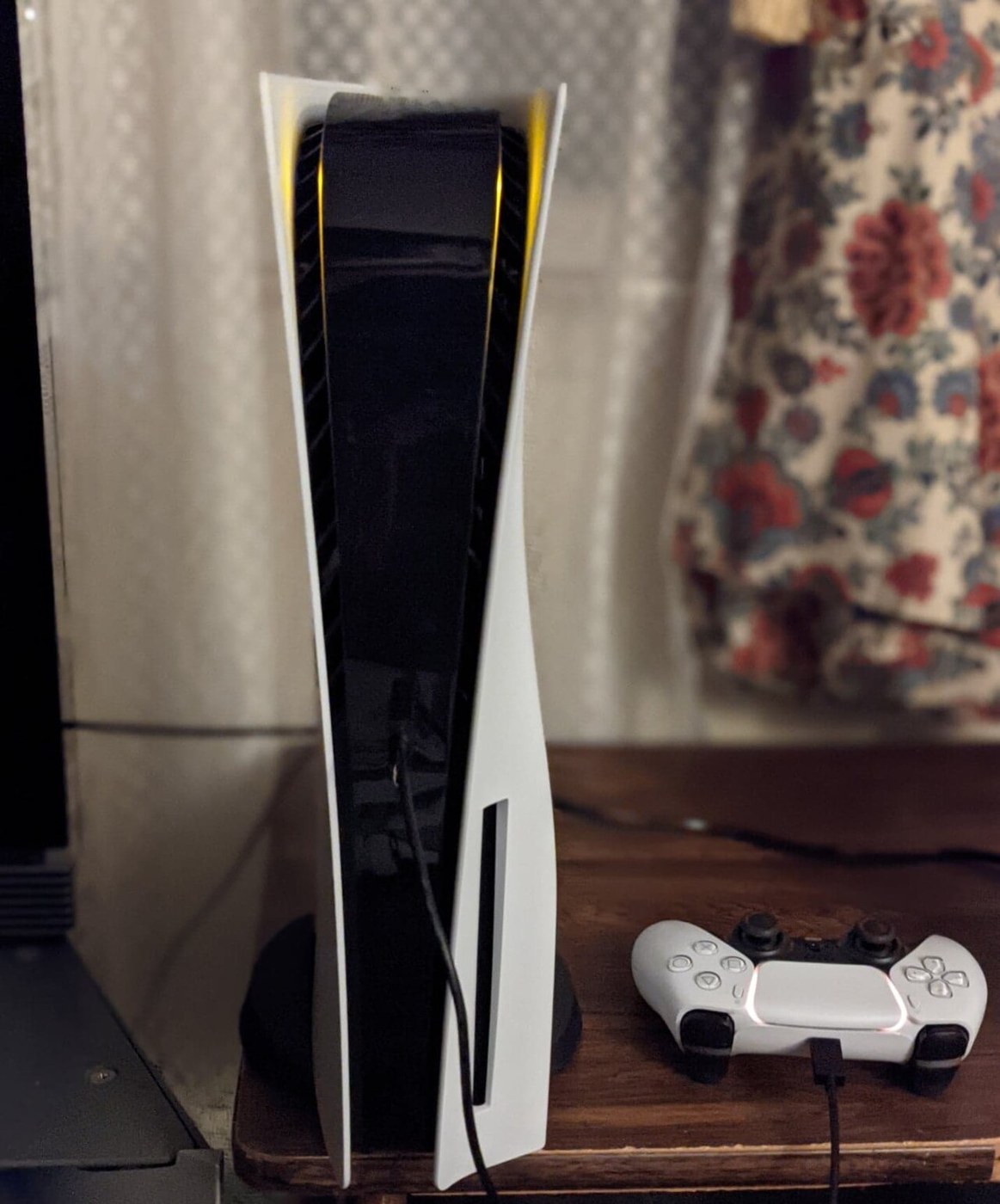
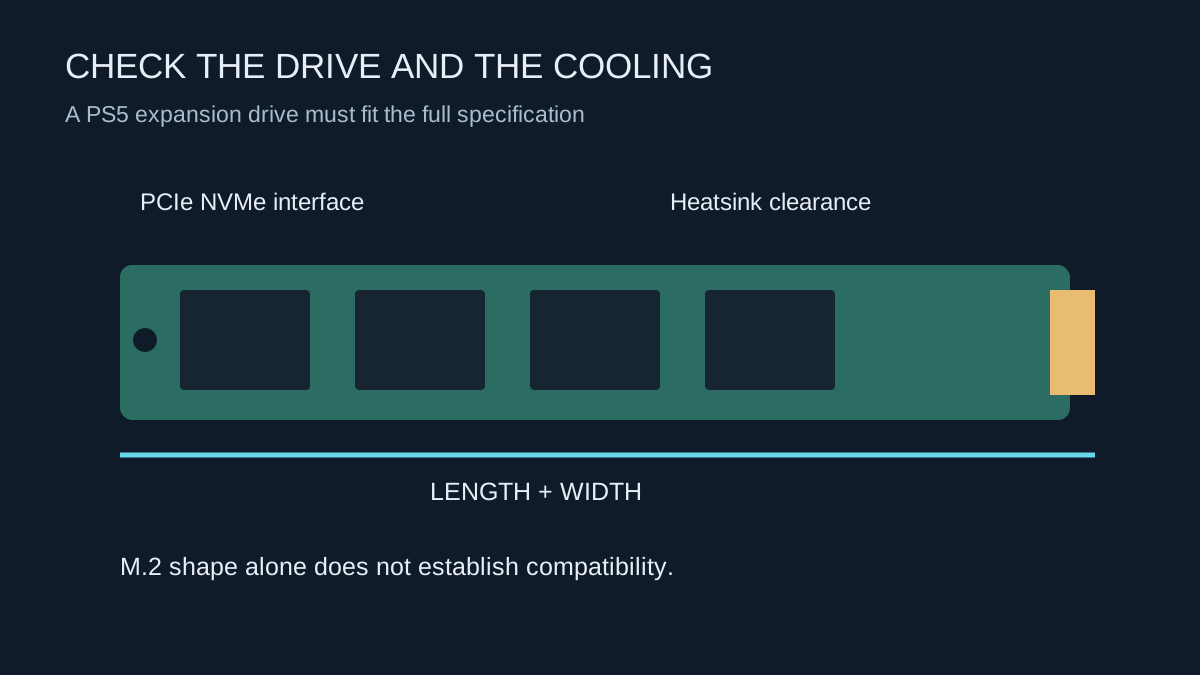
On PS5, compatible PS4 games can run from USB extended storage. PS5 games can be stored there but must be copied to suitable console or M.2 storage to play. That distinction is central to choosing between a USB archive and an internal expansion drive.
Xbox Series X and Series S also distinguish USB storage from their supported expansion-card route. Check the requirements of each game rather than assuming every title in the library behaves identically. A backwards-compatible game and a current-generation version with a similar name may have different storage requirements.
The drive connection must meet the console's requirements. The appearance of a USB connector does not prove the speed of the drive, cable or port. Use the manufacturer's specified port and connection arrangement, and check any restrictions on hubs before adding one.
Plan the first setup and everyday transfers
Formatting for console game storage can erase existing files. Use an empty drive or preserve anything important elsewhere before accepting the format prompt. Label the drive so it is not later mistaken for an ordinary backup disk and reformatted on a computer.
Move a small set of games first and verify that the console recognises them. For an archive-only title, practise copying it back and launching it so you understand the wait involved. Do not disconnect the drive during a transfer. Use the console's supported removal procedure when unplugging it.
If several people use the console, agree which games remain on launchable storage. Otherwise one player may repeatedly move another person's current game to make space, creating unnecessary transfers. A simple rotation plan can make a smaller setup easier to use.
Buy for the actual bottleneck
An external SSD may reduce transfer waits compared with a slower device, but it does not change the console's rules about where a game can run. Paying for a faster USB drive does not turn it into an internal expansion card or compatible M.2 installation.
If you want a large low-cost archive, capacity and reliable transfer behaviour may matter most. If you need many current games ready to launch immediately, compare the supported playable expansion instead. Keep saves protected through the platform's supported options regardless of where the installation lives; losing a downloadable game file and losing progress are different problems.