Decide what you want to capture
A short highlight, a troubleshooting clip and a long playthrough have different storage and quality needs. Start with the purpose. A brief clip showing a menu problem may not need the highest available resolution, while footage intended for later editing may need a format your editor can handle.
Check the console's current capture options for the game and output mode. Some scenes or content may be blocked from capture. A capture setting that worked in one title is not a promise that every app or protected scene can be recorded.
Make a short test before the important session
Record a small clip with the intended settings and play it back. Check image quality, sound and whether the beginning and ending contain what you expected. For a rolling recent-gameplay feature, confirm how much history is retained and how to save it. That is different from starting a new recording and leaving it running.
Test voice inclusion separately. Party audio, your microphone and game sound can have different permissions and controls. Tell other participants before recording or sharing their voices, and respect their choices. Review the clip for private messages, account details or other information that should not be published.
If the clip will be edited on another device, transfer the test and open it there. A file that plays on the console may need compatible software elsewhere, especially with HDR or less common codecs. Establish the workflow before recording an evening of footage in a format you cannot conveniently use.
Keep storage from becoming a surprise
Longer duration and higher-quality settings can produce larger files. Instead of relying on an assumed file size, inspect a test clip made with your settings and use it to estimate the session. Actual size can vary with the format and content, so leave margin rather than filling every remaining gigabyte.
Review automatic captures such as trophy or achievement clips if the platform offers them. They can accumulate without an intentional recording session. Keep the ones you value and change the automatic behaviour if it produces material you never use.
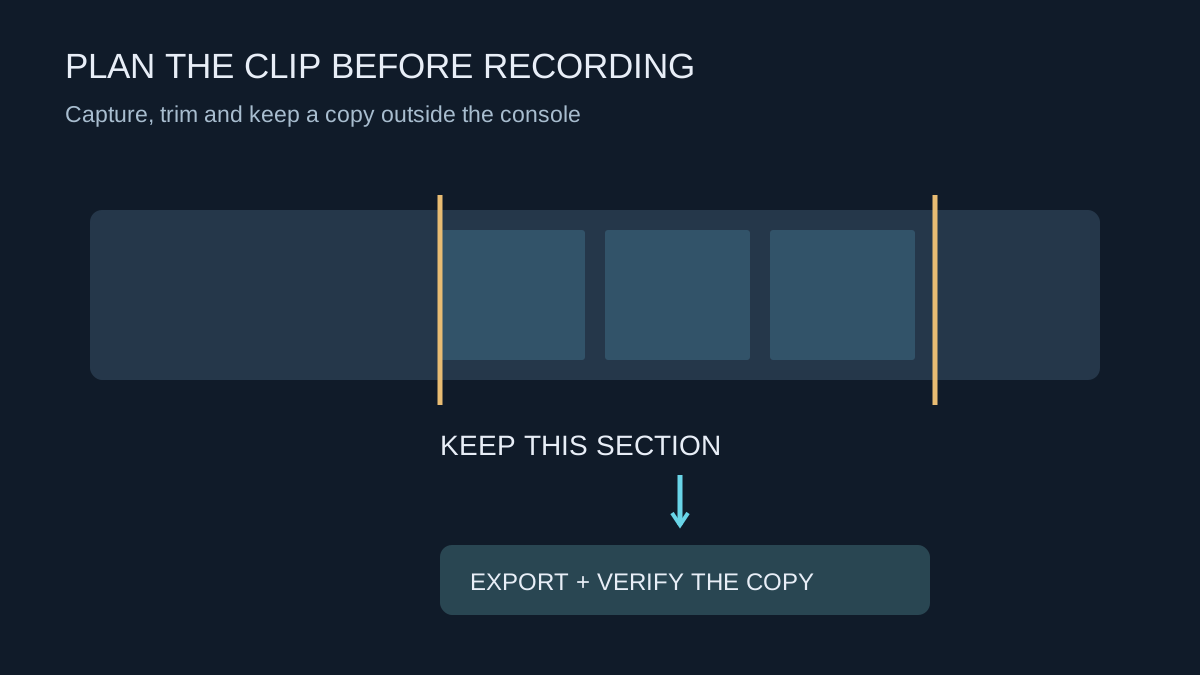
Trim a highlight to its useful section before making several exported versions. Keep an original where future editing matters, but do not treat multiple copies on the same console as protection against losing the device.
Verify the destination copy
Use the console's supported export or sharing route. After transfer, open the file on the destination and check the full clip, including audio. A thumbnail or filename alone does not prove that the transfer completed successfully. Store important material independently before deleting the console copy.
Cloud or companion-app availability may have limits, so read the current service rules instead of treating an uploaded clip as permanent archival storage. For footage you want to keep, maintain your own organised copy with a game name and date.
Before public sharing, watch the final version once more. Remove accidental personal information and make sure you have the relevant permissions for recorded voices and any added music. The console's share button handles distribution; it does not make every element of a recording appropriate to publish.