A capture card has more than one output job
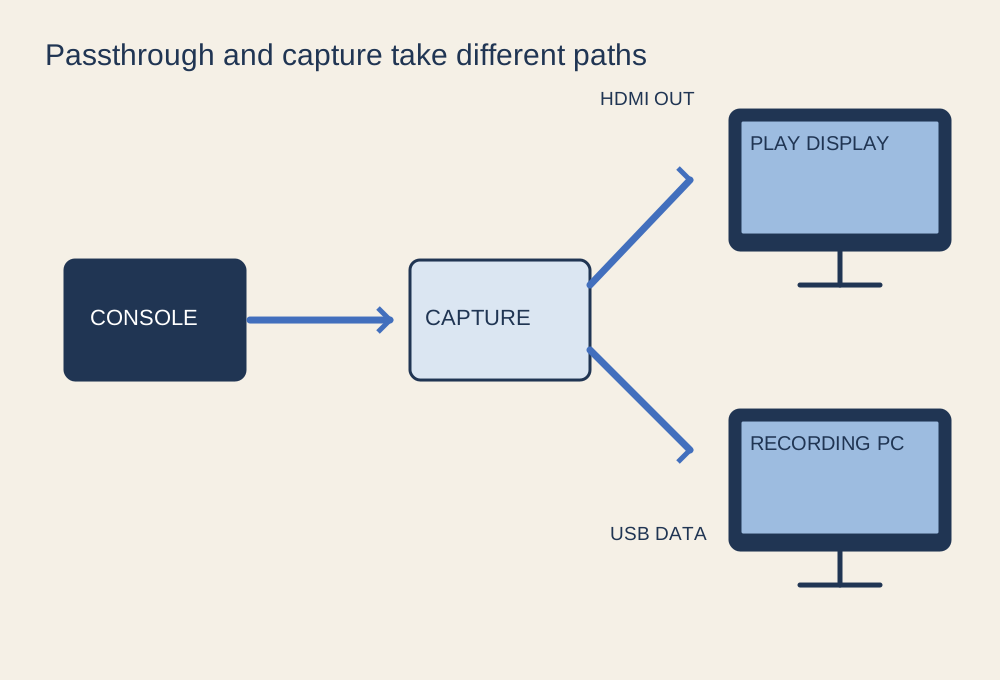
An external capture card typically receives a video signal from a console or another computer, passes a signal to a play display, and sends captured data to a recording computer. The display path and capture path can have different limits. A product advertising a high-resolution passthrough mode does not necessarily record that mode at the same frame rate.
Draw the arrangement before buying: source HDMI output to capture HDMI input, capture HDMI output to the play display, and the specified data connection to the recording computer. Label each port. A laptop's HDMI socket is commonly an output, so connecting the console directly to it is not a substitute for an actual video input or capture device.
Check the exact mode
Write the resolution and refresh rate you want to play at, then the resolution and frame rate you intend to record. Check both against the capture-card maker's supported-mode table. Also check HDR, variable refresh rate and any other feature you expect to preserve. Support for one combination does not establish support for every higher-refresh or HDR variation.
Compare those modes with the source and display too. The lowest supported link can constrain the whole arrangement. Cables and adapters must meet the relevant connection requirements; a familiar connector shape alone is not enough. Avoid adding a switch or splitter during the first setup because it introduces another compatibility question.
Give the recording computer the required connection
For a USB capture device, check the required USB capability and use the supplied or specified cable. A charging-only cable will not provide the necessary data connection. A hub or dock may share bandwidth with other devices, so follow any recommendation for a direct computer connection. Internal capture cards instead need the appropriate slot and system support.
Check the recording computer's software and hardware requirements. Receiving the signal and encoding a recording are separate workloads. If preview appears but recording stutters, inspect the software's performance information and output settings before assuming the console signal is faulty. Start with a supported, modest recording mode to establish a reliable baseline.
Test picture, sound and latency
First confirm a picture on the passthrough display. Then add the capture source in the recording application and select the intended video and audio settings. Play through the display path intended for gaming rather than assuming the software preview has negligible delay. Preview latency depends on the complete capture and software chain.
Make a short recording with an action that has a clear sound, such as a menu selection or a visible in-game event. Check audio synchronisation in playback. Verify that game audio is present once, and that your microphone or chat sources are included only when intended. A working video preview does not prove that the recording file has the correct sound.
Recognise protected content
Some protected video content cannot be captured through the normal path. Follow the console and capture-device guidance for supported game capture; do not attempt to defeat content protection. Settings that allow gameplay capture can also affect access to protected media applications, so read the platform-specific instructions before changing them.
Keep a note of the working resolution, connection ports and software settings. If you later enable a new display feature and lose the picture, return to that known configuration and change one item at a time. The signal diagram gives you a way to isolate the failing link instead of replacing cables and changing output modes at random.