Start before the first busy scene
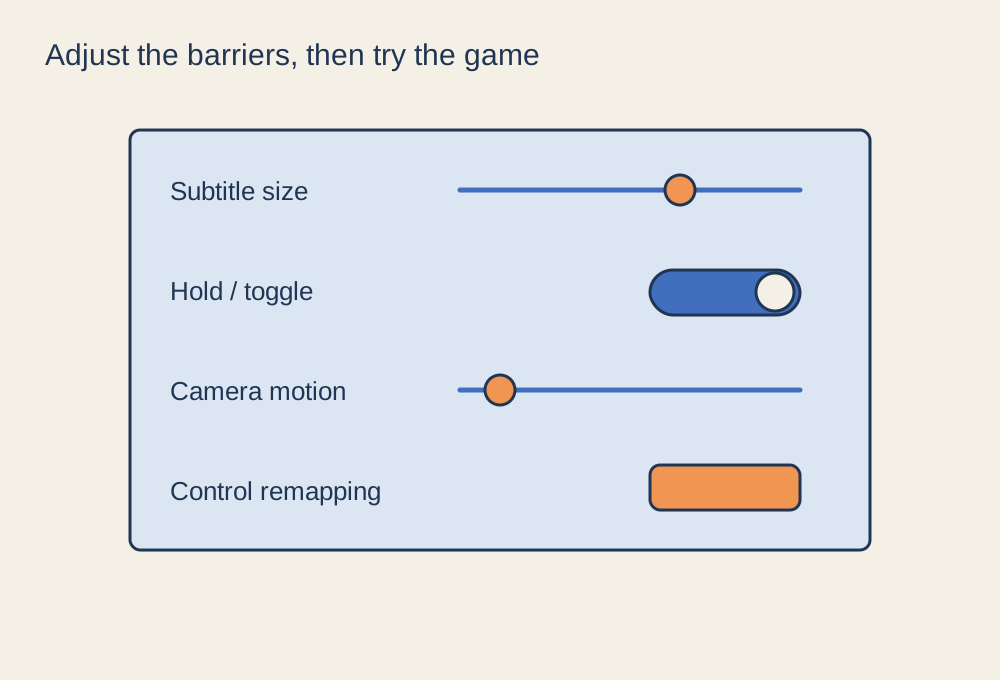
Open the accessibility and general settings before starting a new game. Features can be spread across several menus: subtitles under audio, camera movement under video, and hold-to-toggle options under controls. A single accessibility heading may not contain everything that helps you. Use the publisher's feature information or store tags to identify relevant options, while checking the actual game version you own.
Describe the obstacle in concrete terms. Perhaps you cannot read dialogue against a bright background, distinguish an important marker, hold a button comfortably or follow a rapidly moving camera. That description gives you a setting to test. Turning on every option at once can introduce changes you do not want and make the useful one harder to identify.
Match the option to the task
For dialogue, compare subtitle size, background, speaker labels and any available directional cues. Subtitles may cover spoken words without describing other important sounds, so check whether the game also offers captions or visual sound indicators. Test during a scene with several speakers rather than only the opening menu.
For controls, look at remapping, toggle modes, repeated-press alternatives and sensitivity adjustments. Try an ordinary sequence of actions after the change. A setting that solves one difficult input should not silently make another essential action unreachable. Different control devices may expose different options.
For visual comfort and clarity, explore camera shake, motion blur, field of view and interface contrast where provided. Do not assume that a named colour-vision mode is automatically the best choice for you; examine the actual markers and distinctions it changes. If a setting makes the scene harder to interpret, restore it and try another supported option.
Keep the useful combination
Test the settings in the mode you intend to play, including multiplayer where relevant. Some assistance options are limited to particular modes or difficulties. Store accessibility tags can help with discovery, but they do not guarantee that every feature operates identically on every platform or in every section of a game.
Record the settings that help, especially before resetting the game or moving to another device. Revisit them after an update if the interface changes. There is no need to justify a useful setting as a temporary beginner aid: choose the arrangement that lets you understand and operate the game. If an essential feature is absent, check the developer's support information before assuming a third-party workaround will be compatible.